
AN UPGRADE TO OUR
CUSTOMER PORTAL IS COMING!
Update: Portal Upgrade Timeline
We want to give our customers more time to prepare, so we're moving our online portal upgrade to September 1, 2026.
We recognize our original timeline didn't give everyone enough notice, and we've heard that concern from many of you — thank you for speaking up. Pushing this date back lets us make sure the transition is as smooth as possible.
What this means for you:
- No action is needed right now. We'll share the exact portal downtime window and updated activation instructions as soon as they're finalized.
- Your service schedule, payment options, and account remain unchanged in the meantime.
- We'll notify you by email and update this page well ahead of the new date.
If you have questions, call us at (559) 665-7300.
We appreciate your patience as we work to make this transition easier for everyone.
"What Do I Need to Do?"
Getting Set Up
Starting September 4, 2026, head to
caglia-portal.navusoft.net or click "Get Started" below. Since this is a new system, click "Forgot or Reset Password" to set up your login for the first time.
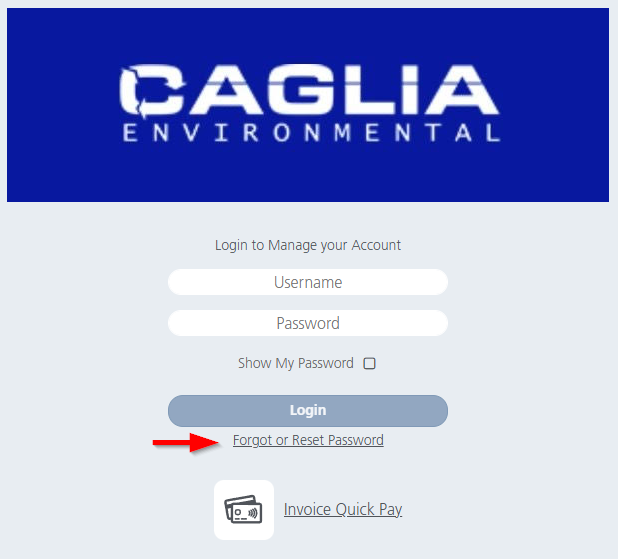
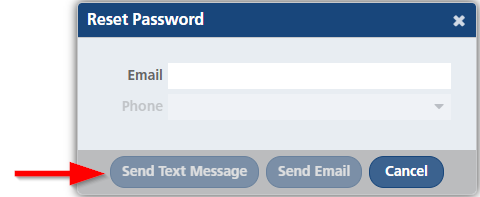
Enter your email address or phone number, and click "Send Text Message" or "Send Email"
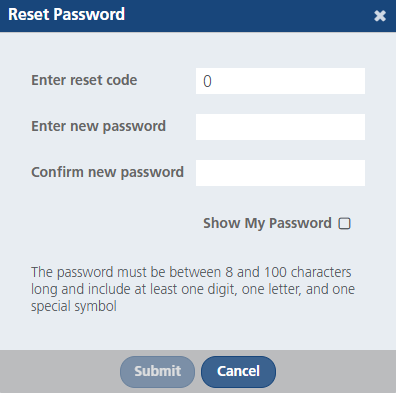
Enter the reset code received via email or text message and set your new password.
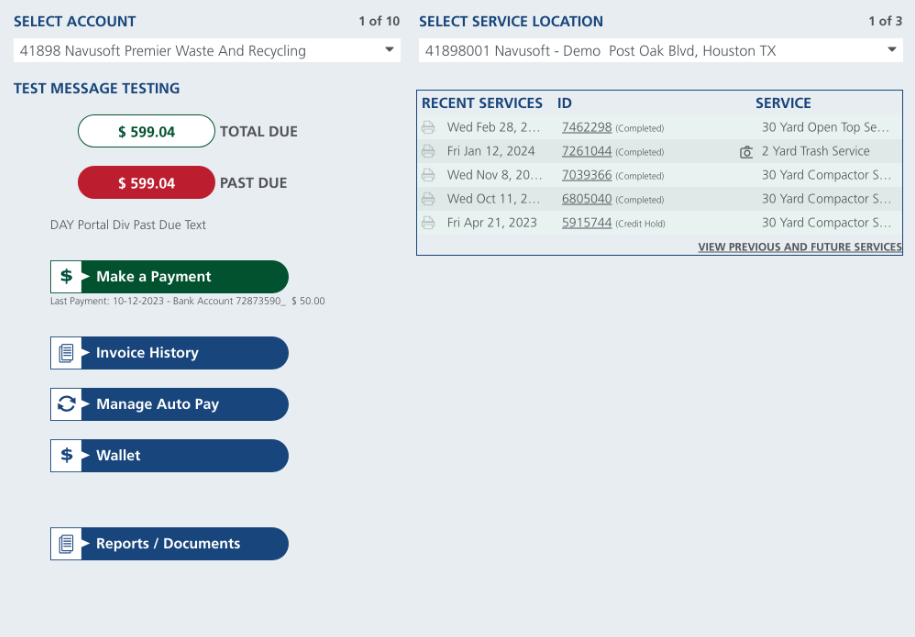
Once password is reset you will be able to login and have access to the new portal
Setting Up Your Wallet
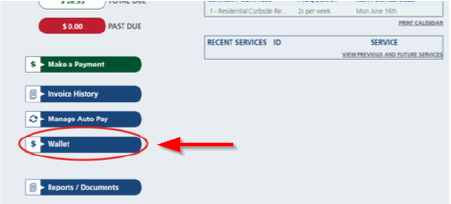
Once logged in, click "Wallet" to review your payment methods. Your saved cards and bank accounts should already be there — if anything's missing, click "Add Wallet" and then choose "Credit Card" or "Bank Card". Enter your payment details and click "Save.
Making a Payment
Go to "Make a Payment" or "Pay Bill"
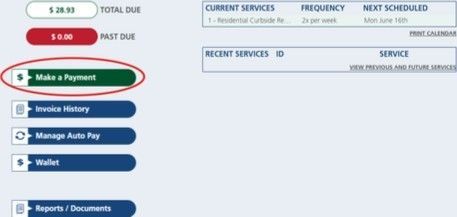
- Review “Total Balance” for the total amount owed, or current charges for most recent invoice.
- Select your saved payment method from the wallet or add a new one
- Make Payment
- Click "Process Payment" to complete your payment
Setting Up AutoPay
AutoPay ensures you never miss payment and avoid late fees and service shutoff
Click "Manage AutoPay".
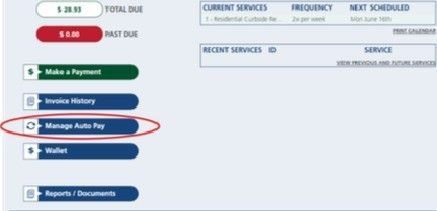
Choose your timing (Enable Automatic Payments)
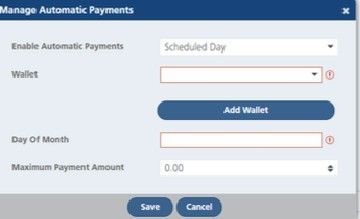
- Select your payment method from the wallet
- Hit Save to activate
Need Help? No Problem!
Get Help Online
Our new portal allows screen sharing to allow us to view your screen securely without sharing login credentials. This feature operates exclusively within the Navusoft application, ensuring that other browser tabs or external screens are not visible. A customer service representative will ask for your “Screen Share Code” to initiate a screen sharing session. To start, click on the ‘Share Screen” icon on the top right of the screen to get your code.
Get Help By Phone
We're available by phone to help you get your account started and update your settings.